Overview
When a Shopify order is sent to QuickBooks Online, weintegrate needs to know which QuickBooks customer the sale belongs to. You choose between giving every shopper their own customer in QuickBooks Online, or recording all of a store’s sales against one “bulk” customer. With your own customer per shopper, weintegrate looks each one up by comparing one field from the Shopify order with one field on your QuickBooks Online customers. If the customer isn’t in QuickBooks yet, weintegrate can create it for you or use a default customer you choose, depending on your If Customer is not found then setting.
Quick setup
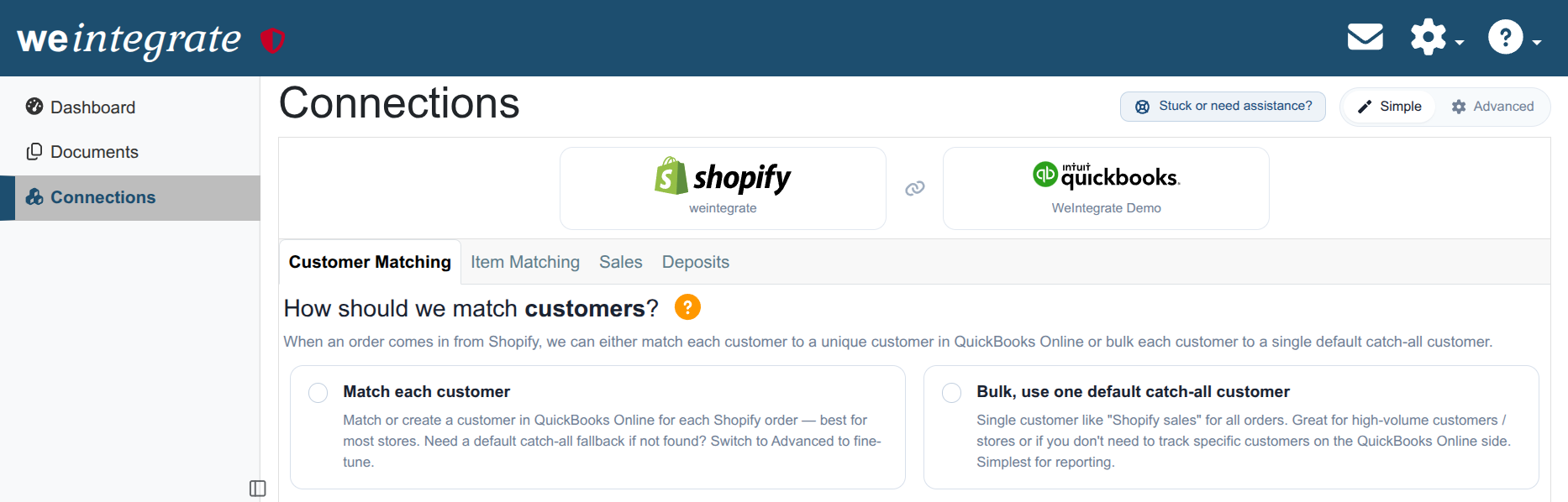
- Go to Connections, select Edit Settings under your Shopify store, and open the Customer Matching tab. (In the setup wizard, this is the step How should we match your customers?)
- Select one of the two cards:
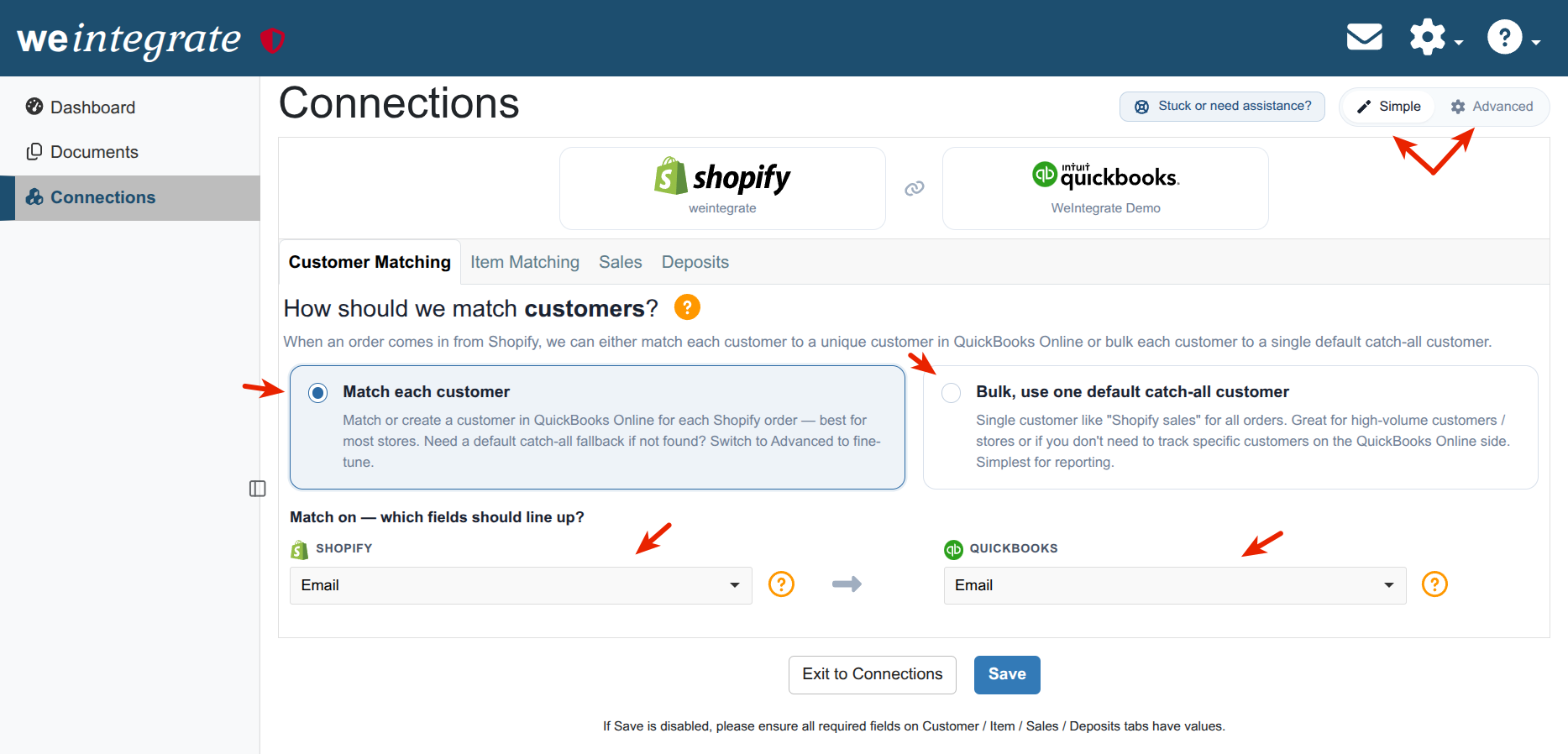
- Match each customer — every order is recorded against its own customer in QuickBooks Online. Best for most stores.
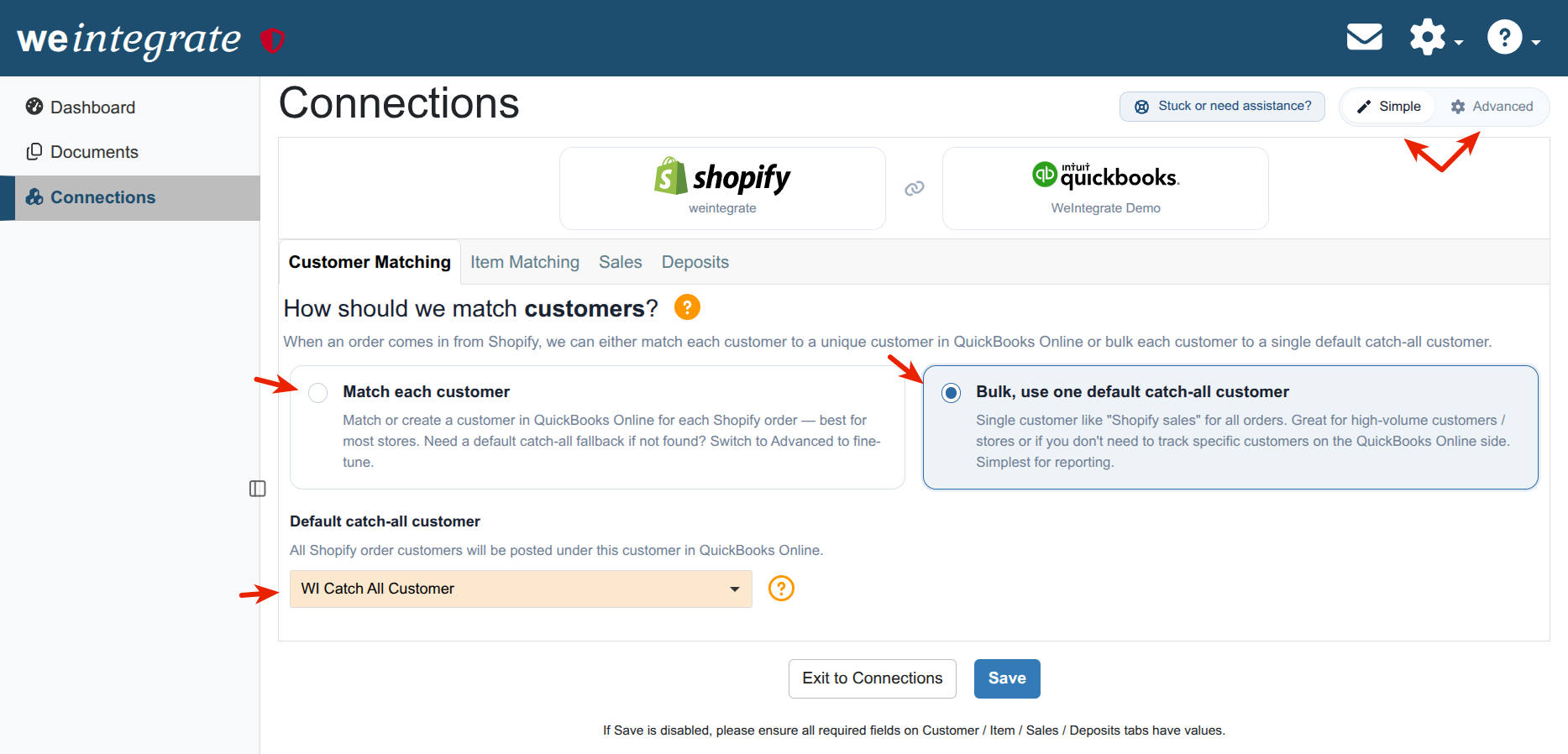
- Bulk, use one default catch-all customer — every order is recorded against one customer you choose, such as “Shopify Sales”.
- If you picked Bulk, choose a customer under Default catch-all customer. Don’t have one yet? Choose Auto create for me.
If you picked Match each customer, set the Match on fields. See Set unique customer matching with Primary Match. - Select Save (Edit Settings) or Continue (setup wizard).
Changes apply to orders synced after you save. Orders already in QuickBooks are not changed.
Which one should I pick?
Either option is an acceptable practice. It’s up to you and your business.
Match each customer
- We look the customer up using the fields you pick. If we can’t find them, we either create them or use a default customer.
- You see each customer’s sales and who your repeat customers are.
- QuickBooks will hold a customer record for every one-time shopper.
Bulk, use one default catch-all customer
- Simplest for reporting, and keeps your QuickBooks customer list short.
- A good fit for high-volume stores, or stores that don’t need to see individual shoppers in QuickBooks.
- Each Shopify store has its own customer matching settings. Give each store its own bulk customer to see your sales per sales channel.
Choosing the Bulk catch-all customer
Under Default catch-all customer: “All Shopify order customers will be posted under this customer in QuickBooks Online.”
- The dropdown lists your QuickBooks Online customers. Start typing to find one.
- A good choice is a customer you create in QuickBooks just for this, such as “Shopify Sales”.
- A customer must be picked before you can continue or save.
Auto create for me creates a customer named WI Catch All Customer in QuickBooks:
- In the setup wizard, when you select Confirm & save on the last step (Review & finish setup).
- On the Customer Matching tab, when you select Save.
This usually takes 30–90 seconds; please don’t refresh the page. If your QuickBooks company already has a customer with that name, Auto create for me isn’t offered and that customer is suggested instead.
That’s all Bulk needs. The Match on fields, the secondary match and If Customer is not found then are not used in Bulk mode and are not shown.
Simple and Advanced views
The setup step and the Customer Matching tab have a Simple / Advanced switch at the top.
- Simple shows your choice and the one setting it needs: the Default catch-all customer for Bulk, or the main Match on fields for Match each customer.
- Advanced shows every setting on the tab. The two choices appear as round option buttons at the top.
In the setup wizard, you pick on How should we match your customers? and finish on the next step, How should we match customers?. In Simple mode that step shows only your choice; select Back to change it, or switch to Advanced. In Simple mode, the Customer Matching tab shows both cards and you can switch between them.
Extra settings in Advanced mode
With Bulk selected, two more settings appear below the customer in Advanced mode. Both are off unless you tick them, and they apply to the catch-all customer too:
- Convert inactive customers to active when posting new orders to accounting — if the catch-all customer is inactive in QuickBooks, it is made active again so the order can use it. This happens for orders that have a customer; an invoice for an order with no customer doesn’t reactivate it, so keep the catch-all customer active. See While integrating Shopify to QuickBooks Online, convert inactive customers to active.
- Update customer address in Accounting from newly received orders? — with Bulk, this rewrites the catch-all customer’s address with the address on each new order that has a customer (bill to, ship to, or both, as picked in the Accounting dropdown shown when you tick it). The address on that one customer keeps changing, so think before ticking it with Bulk. See While integrating Shopify to QuickBooks Online, update customer address.
Orders without a customer
Some Shopify orders have no customer at all. These skip matching:
- A sales receipt is created without a customer.
- An invoice (QuickBooks requires a customer on one) uses the Bulk catch-all customer, or, with Match each customer, the default customer set under If Customer is not found then.
For your accountant / bookkeeper: customer matching decides the Customer on each sales receipt and invoice that weintegrate creates. A refund receipt uses the same customer as the original sale. It does not change any amounts.
WI Catch All Customer is created with both its Display name and Company name set to
WI Catch All Customer. In Bulk mode, each sales receipt or invoice still carries the shopper’s email as the Billing email, and the order’s billing and shipping addresses when they differ from the catch-all customer’s. Only the Customer is shared.
Troubleshooting
I can’t continue or save.
In Bulk mode, pick a customer (or Auto create for me) under Default catch-all customer. Check the dropdown isn’t still showing its placeholder (- Select a customer - in Simple mode, - Select from List - in Advanced mode).
Auto create for me isn’t in the list.
Your QuickBooks company already has a customer named WI Catch All Customer. Pick it from the list.
I switched to Bulk, but orders already in QuickBooks still show the individual customers.
Changes apply to orders synced after you save. Orders already in QuickBooks are not changed.
Advanced rules
Advanced rules are part of setting up Match each customer. They are covered under Advanced rules in the primary match guide.
Related topics
- Set unique customer matching with Primary Match between Shopify and QuickBooks Online — the main Match on fields, If Customer is not found then, and Advanced rules.
- Add secondary match to customer matching between Shopify and QuickBooks Online — a second way to find the customer when the first doesn’t.
- Select bulk or unique item matching in QuickBooks Online
Each weintegrate Shopify connection has its own customer matching settings.