Overview
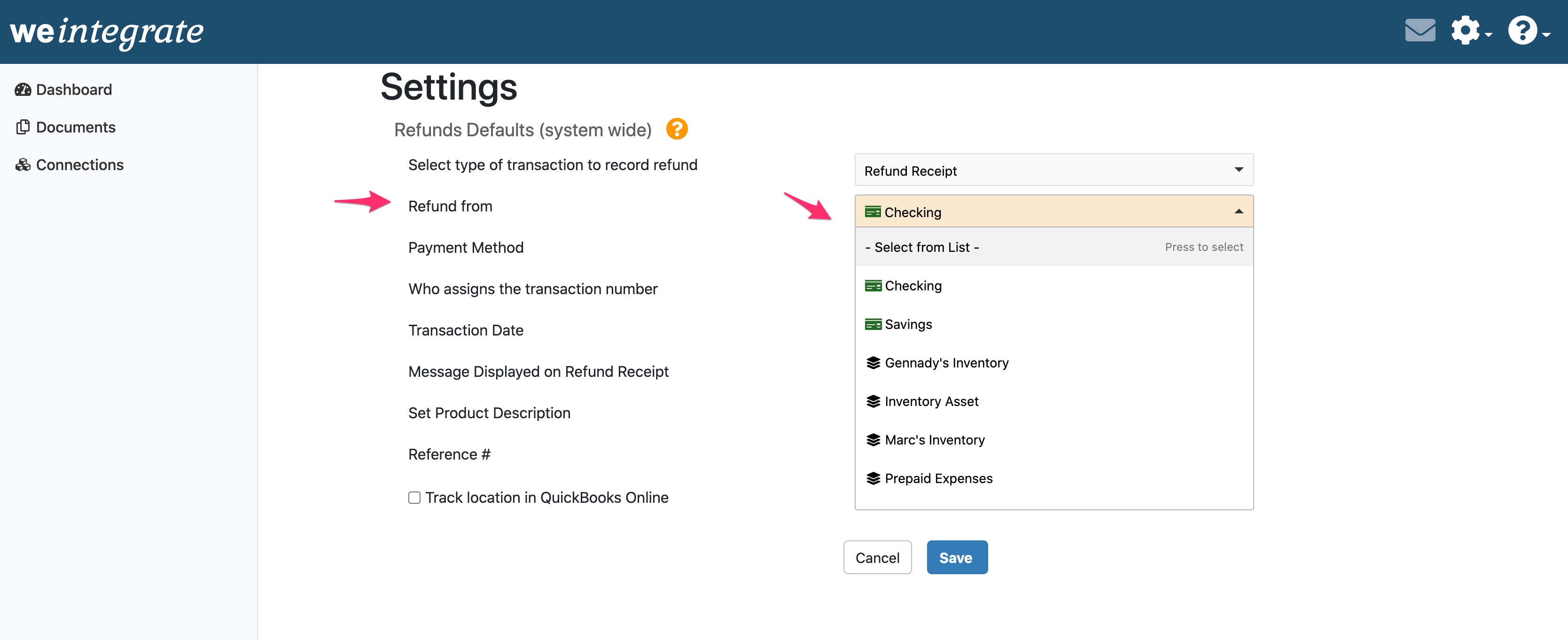
This system-wide setting in weintegrate controls which account is set as the Refund from field on Refund Receipts / Credit Memos created in QuickBooks Online from your Shopify refunds.
The dropdown list of available accounts is populated entirely from your connected QBO account. Because the options depend on your specific QuickBooks Online setup, weintegrate cannot preset this value. The field is displayed with a beige background to indicate that manual selection is required before you can proceed.
This setting must be set to Undeposited Funds for proper Shopify Payout to QBO Deposit Integration.
Why This Setting Matters
Setting this correctly is not just a preference — it determines whether weintegrate’s automated Shopify Payout to QuickBooks Online Deposits can accurately account for refunds.
Shopify refunds don’t leave your bank account independently. They are deducted from the payout they fall within — Shopify nets them against gross sales when calculating the single deposit amount your bank receives. That reduction needs to appear inside the QBO Deposit, offset against the Sales Receipts / Credit Memos it belongs with.
For that to happen, Refund Receipts / Credit Memos must flow through Undeposited Funds first — exactly as Sales Receipts / Invoices do — so they can be included in the correct QBO Deposit when your Shopify payout is processed.
When Refund From points to a bank account or any other account directly:
- Refund Receipts / Credit Memos post immediately to that account
- They fall outside the payout reconciliation entirely
- Every QBO Deposit weintegrate creates will be short by exactly the refund amounts included in that payout
When Refund From is correctly set to Undeposited Funds:
- Every Refund Receipt is staged in the holding account alongside the Sales Receipts / Invoice
- weintegrate includes the refunds in the payout grouping, reducing the deposit total to match the net amount Shopify actually sent to your bank
- The QBO Deposit matches your bank statement — gross sales minus refunds minus fees, all in one reconcilable deposit
There is no automated retroactive fix. Transactions that posted to the wrong account cannot be pulled back into the Undeposited Funds flow automatically and will need to be manually fixed by you. Set this correctly before your first refund syncs.
Background: What Is Undeposited Funds?
Undeposited Funds is a built-in holding account in QuickBooks Online. It is where payment and refund amounts sit after they are recorded but before they are matched to an actual bank deposit — the staging area between “transaction recorded” and “money settled in your bank account.”
Intuit’s own documentation describes it as the account that “holds customer payments in QuickBooks until you deposit them at your real-life bank.” Its purpose is to make bank reconciliation accurate by letting you group multiple transactions into a single deposit that matches exactly what appears on your bank statement. Transactions that skip Undeposited Funds and post directly to a bank account create duplicate entries and orphaned records that are difficult to unravel. You can read the full explanation in Intuit’s official Undeposited Funds documentation.
Shopify payouts are batched: Shopify collects individual customer payments throughout the payout period, deducts refunds and processing fees, then sends a single net deposit to your bank. Your bank sees one deposit per payout period — not one per order, not one per refund.
weintegrate deliberately uses the Undeposited Funds workflow to map Shopify’s batched payouts into QBO correctly — following exactly the mechanism Intuit designed for this scenario. Sales Receipts and Refund Receipts both stage in Undeposited Funds, and when a Shopify payout arrives, weintegrate assembles them into a real QBO Deposit for the net payout amount.
That only works if the Refund Receipts are in Undeposited Funds alongside the Sales Receipts.
How It Applies by Document Type
Refund Receipt:
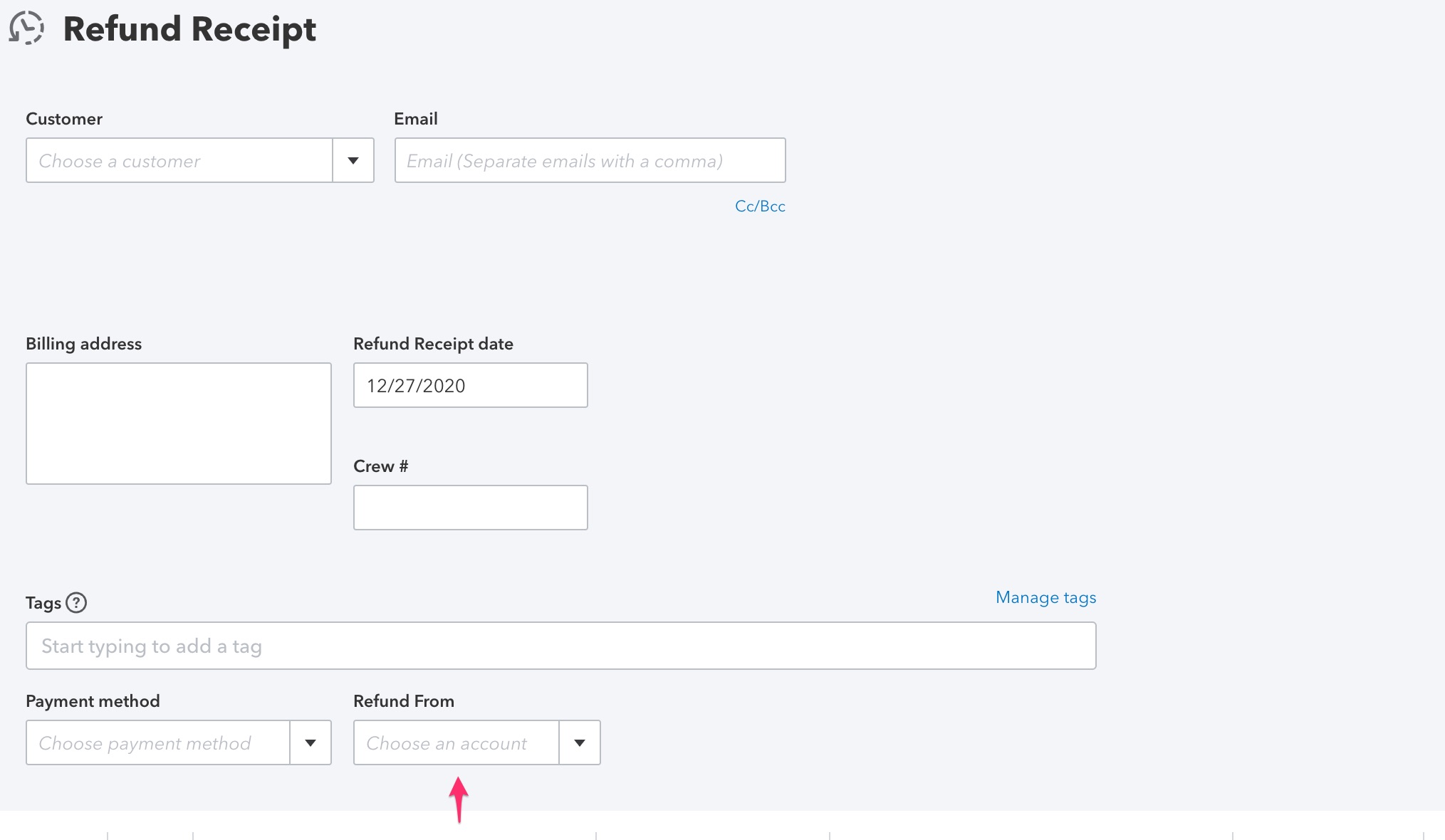
When weintegrate is configured to create Refund Receipts, the account specified here appears in the Refund from field of every Refund Receipt created from a Shopify refund.
Credit Memo:
When weintegrate is configured to create Credit Memos, a Refund document is automatically generated in QBO to record the cash movement back to the customer. The account specified here appears in the Refund from field of that Refund document.
In both cases, the setting must be Undeposited Funds.
Prerequisites
Before configuring this setting, confirm:
- You have connected your QuickBooks Online account to weintegrate
- Your QBO chart of accounts includes Undeposited Funds (it is a default QBO account and should be present unless it has been manually hidden or deleted)
- You are in the Setup Wizard or have navigated to Refunds Defaults in your connection settings
Configuration
Step 1 — Access Refunds Defaults
During initial setup:
The Refunds Defaults screen appears as part of the Configuration Setup Wizard. Proceed through the wizard until you reach this screen.
After initial setup:
- Click the gear icon in the top right corner of weintegrate
- Select Preferences from the dropdown
- Click Refunds Defaults
Step 2 — Set Refund From
Locate the Refund From field. The dropdown is populated from your connected QuickBooks Online account.
Select Undeposited Funds.
If Undeposited Funds does not appear in the dropdown, it may have been hidden or archived in your QBO account. Go to QuickBooks Online → Accounting → Chart of Accounts, locate Undeposited Funds, and select Make Active. Then log out and back in to weintegrate to refresh the list.
Step 3 — Save
Click Save or Next (depending on whether you are in the setup wizard or editing an existing connection).
Post-Configuration Outcomes
Once Refund From is set to Undeposited Funds and saved:
- Every Refund Receipt created by weintegrate will have Undeposited Funds as the source account
- Refund Receipts will stage in Undeposited Funds alongside Sales Receipts, ready for payout reconciliation
- When your Shopify payout is processed, weintegrate will include the matching Refund Receipts in the QBO Deposit, reducing the deposit total to reflect the net payout amount
- Your bank statement and QBO Deposit will match — gross sales minus refunds minus fees in a single, reconcilable deposit entry
Troubleshooting
Undeposited Funds is not in the dropdown.
This account may be inactive in your QBO account. In QuickBooks Online, go to Accounting → Chart of Accounts, filter for Undeposited Funds, and select Make Active. Then log out and back in to weintegrate to reload the dropdown.
I already set this to a bank account — what happens to past refund transactions?
Refund Receipts that were already posted directly to a bank account cannot be retroactively moved into the Undeposited Funds flow. Change the setting to Undeposited Funds for all future transactions. For past transactions, you will need to manually adjust them in QBO or consult with your accountant.
I updated my chart of accounts in QBO but the new accounts are not showing.
weintegrate loads your QBO account list at login. Log out of weintegrate and log back in to refresh the dropdown with your updated accounts.
The Refund From field has a beige background.
This is by design — it indicates that the field requires manual selection and weintegrate cannot preset it from your QBO data. Select Undeposited Funds and save.
My QBO Deposit total doesn’t match the Shopify payout net amount.
Check that Refund From is set to Undeposited Funds and that all Refund Receipts from the payout period staged there correctly. If Refund Receipts posted directly to a bank account instead, the deposit total will be short by the refund amounts. Correct the setting for future payouts and adjust past transactions manually if needed.
Related Topics
- Sales Default — Integrate Shopify with QuickBooks Online — Deposit Payment To — the companion setting that must also be set to Undeposited Funds for payout reconciliation to work correctly
- Refunds Default — Integrate Shopify with QuickBooks Online — Payment Method — configure the payment method default for refund processing
- Understanding Your Documents — Payouts — how weintegrate assembles Shopify payouts into QBO Deposits
- Understanding Your Documents — Refunds — how weintegrate creates Refund Receipts from Shopify refunds and how they appear in QBO
- Who assigns the Transaction number – how to control the whether the QBO transaction number comes from Shopify or QuickBooks Online
- Setup Shopify Integration with QuickBooks Online — Sales and Deposits — full overview of the Sales & Deposits configuration tab, including shipping, discounts, payment methods, and deposit settings