Overview
When syncing Shopify orders to QuickBooks Online, weintegrate provides you with a choice recording the discount in the standard QuickBooks Online discount field (the default) or the option of recording the discount as a dedicated line item instead.
This setting is supported for these QuickBooks Online transaction types:
- Sales Receipts and Refund Receipts (when using the Sales Receipt record sales type)
- Invoices and Credit Memos (when using the Invoice record sales type)
Why Map Discounts as Line Items?
By default, discounts may be applied as adjustments to the overall transaction. However, mapping discounts as separate line items provides:
- Enhanced visibility: Track discount performance and impact at the line-item level
- Improved reporting: Generate detailed reports on discount usage and effectiveness across all transaction types
- Better reconciliation: Simplify month-end closing with granular discount tracking
- Class tracking: Optionally assign QuickBooks Online classes to discount line items for departmental or location-based reporting
- Accurate financial data: Maintain consistency between Shopify and QuickBooks Online for audit purposes
- Works with all record types: Same configuration applies whether you use Sales Receipts or Invoices
Prerequisites
Before configuring discount line item mapping, ensure you have:
- Service Item Created: A dedicated Service-type item in QuickBooks Online for tracking discounts
- Class Tracking Enabled (Optional): If you plan to assign classes to discount line items, class tracking must be enabled in QuickBooks Online
- Learn more: Enable Class Tracking in QuickBooks Online
How to Configure Discount Line Item Mapping
Step 1: Access Sales & Deposits Settings
- Navigate to your Shopify connection settings in weintegrate
- Locate the Sales & Deposits tab
- Scroll to the Sales section
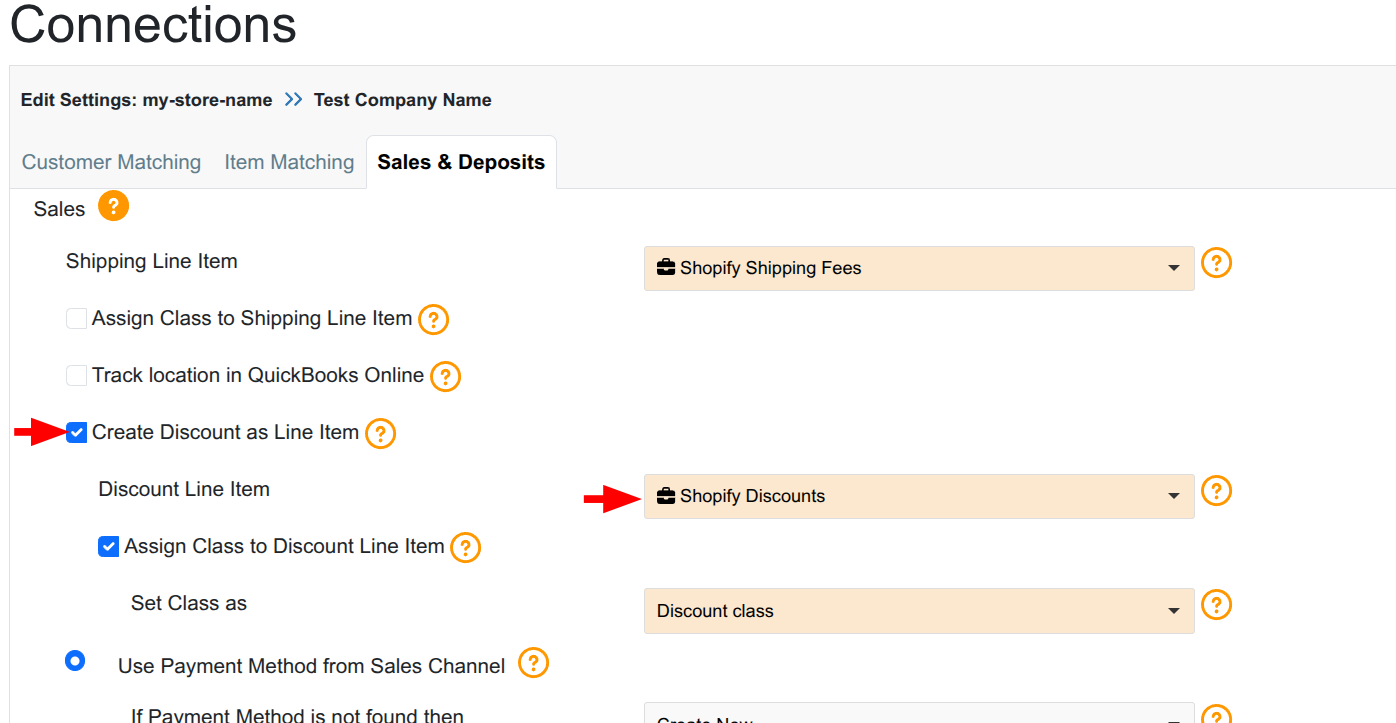
Step 2: Enable Discount as Line Item
- Locate the checkbox labeled “Create Discount as Line Item in QuickBooks Online”
- Check this box to enable discount line item mapping
- The Discount Line Item dropdown field will appear below
Step 3: Select Your Discount Service Item
- Click the Discount Line Item dropdown menu
- Select the Service-type item you created in QuickBooks Online for tracking discounts
- You can search by typing the product name in the search field
Step 4: Assign Class to Discount Line Item (Optional)
If you want to track discounts by department, location, or other classifications:
- Check the “Assign Class to Discount Line Item” checkbox
- This option only appears if class tracking is enabled in QuickBooks Online
- If the checkbox appears greyed out, you need to enable class tracking first
- Select your desired class or sub-class from the Class dropdown menu
- All discount line items will be assigned to this class on all transaction types
For detailed instructions on class assignment, see: Set a QuickBooks Online Class to Discount Line Items by Store Connection
Step 5: Save Configuration
- Review your selections
- Click Save or Next (depending on whether you’re in the setup wizard or editing an existing connection)
- Your discount line item mapping will be applied to all future transactions
What Happens After Configuration
Once enabled (this setting is not retroactive), weintegrate on new orders created after saving this setting will:
- Create a separate line item for discounts on your configured QuickBooks Online transaction type
- Apply the discount amount from Shopify to the line item
- Map the line item to your selected QuickBooks Online service item
- Apply the selected class (if configured) to enable class-based reporting
- Maintain accurate synchronization between Shopify and QuickBooks Online
Troubleshooting
The “Create Discount as Line Item” checkbox doesn’t appear
- Verify that you have created the service item in QuickBooks Online. See: Create a Product in QBO for Mapping Shipping Fees from Shopify
- Confirm you’re in the Sales & Deposits tab
The “Assign Class to Discount Line Item” checkbox is greyed out
- Class tracking must be enabled in QuickBooks Online. See Turn On Class Tracking in QuickBooks Online
Discounts aren’t appearing on transactions
- Verify the checkbox is enabled in Sales & Deposits settings
- Ensure you’ve selected a valid Service item from the dropdown
- Check that the Shopify orders contain discount information
- Review a recently synced order to confirm the discount line item appears
Discount amounts don’t match between Shopify and QuickBooks
- Verify the Service item is not marked as taxable if discounts should be tax-exempt
- Check the discount calculation method in your Shopify store
- Contact support if discrepancies persist
Related Topics
- Create a Product in QBO for Mapping Discounts from Shopify
- Set a QuickBooks Online Class to Discount Line Items by Store Connection
- Map Shopify Shipping Fees to Shipping Line Items in QuickBooks Online
- Sales Default: Integrate Shopify with QuickBooks Online Record Sales Type
- Understanding Sales & Deposits Settings
- Shopify to QuickBooks Online Integration Setup