Overview
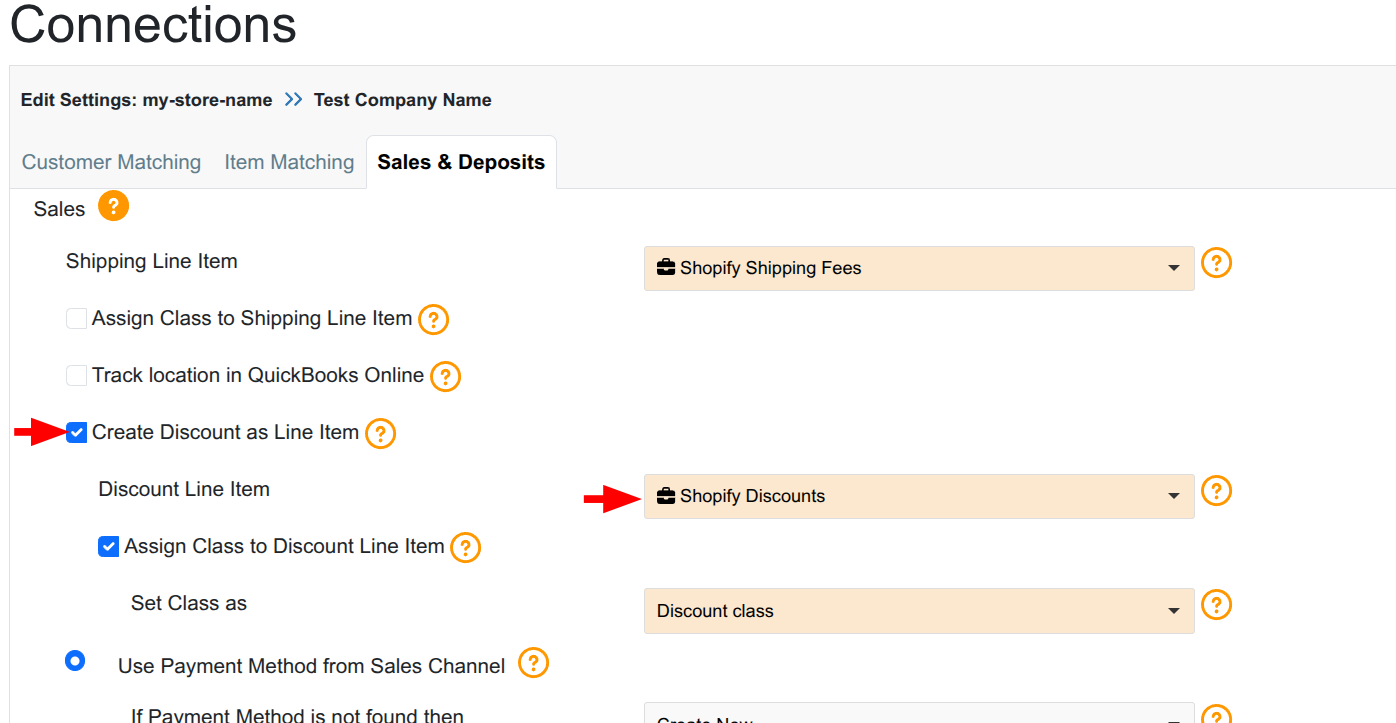
Before you can enable the use of Discount as a Line Item in your QuickBooks Online transactions, you need to create a Service-type item in QuickBooks Online. This Service item will serve as the destination account for all discount amounts synchronized from your Shopify store by weintegrate.
Prerequisites
This Discount Line Item product needs to be added to QBO prior to connecting your QuickBooks Company to weintegrate, however if you did not, you can disconnect your QBO Company, create the product, and reconnect your QBO Company (click Manage Your QuickBooks Online Connection to learn more).
How to Create the Service Item in QuickBooks Online
Step 1: Navigate to Products and Services
-
Log in to your QuickBooks Online account
-
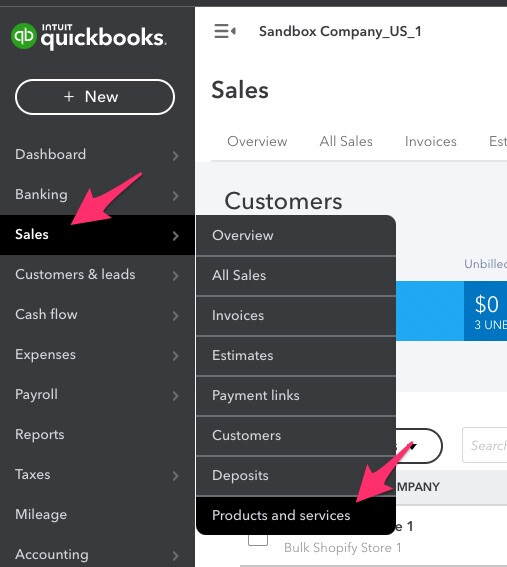
From the left navigation menu, click Sales
-
Select Products and Services
-
Click the New button in the upper right corner
Step 2: Select Service Type
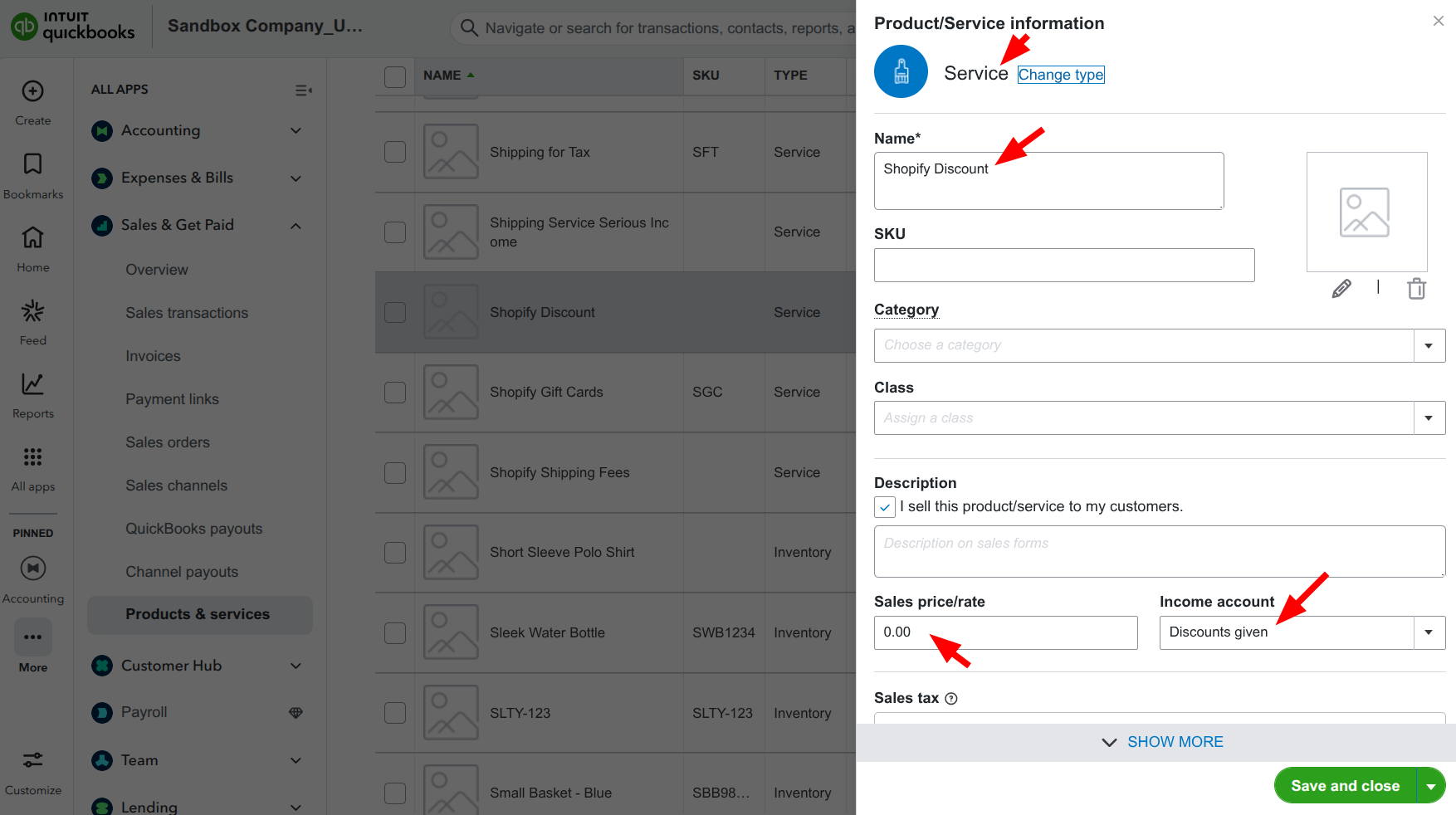
- From the product type options, select Service
- Service type is required for proper synchronization with weintegrate
Step 3: Configure the Service Item
Complete the following fields:
- Name
- Enter a descriptive name such as:
- “Shopify Discounts”
- Choose a name that will be easily identifiable in reports and on all transaction types (Sales Receipts, Invoices, etc.)
- Enter a descriptive name such as:
- Description (Optional)
- Sales price/rate must be set to $0.00
- The price will vary based on actual discount amounts from your Shopify store on a per-transaction basis. weintegrate will automatically apply the correct discount amount from each Shopify order, whether creating a Sales Receipt, Invoice, Refund Receipt, or Credit Memo.
- Income Account must link to an appropriate account in your Charts of Accounts, usually Discounts Given
- Consult with your accountant to determine the best account classification for your business.
Step 4: Save the Service Item
- Review all entered information
- Click Save and Close
- Your new Service item will now appear in your Products and Services list
Configuration in weintegrate
After creating the above Discount service item in QuickBooks Online, complete the steps in weintegrate Map Shopify Discounts to Discount Line Items in QuickBooks Online
Troubleshooting
I don’t see “Service” as an option when creating a new product
- Verify you have appropriate permissions to create products
- Check that your QBO subscription includes product/service management
The Service item isn’t appearing in weintegrate dropdown
- Ensure you’ve saved the item in QuickBooks Online
- Wait a few minutes and then Refresh your browser
- If above still hasn’t helped, Disconnect your QuickBooks Online connection from weintegrate and Re-Connect your QuickBooks Online Connection with weintegrate to force the updated settings to be recognized
I’m not sure which income account to use
- Consult with your accountant or bookkeeper
- Review your Chart of Accounts for existing discount-related accounts
- Consider creating a new contra-revenue account specifically for e-commerce discounts if needed
- Look for accounts with names like “Sales Discounts,” “Discount Given,” or “Promotional Allowances”
Related Topics
- Map Shopify Discounts to Discount Line Items in QuickBooks Online
- Set a QuickBooks Online Class to Discount Line Items by Store Connection
- Create a Product in QBO for Mapping Shipping Fees from Shopify
- Sales Default: Integrate Shopify with QuickBooks Online Record Sales Type
- Sales & Deposits Configuration Guide