Overview
By default, every Shopify order is synchronized (based on rules of the configured QuickBooks Online record sales type). However, depending on your workflow and business needs, you may not want to automatically have weintegrate synchronize orders from Shopify to QuickBooks Online.
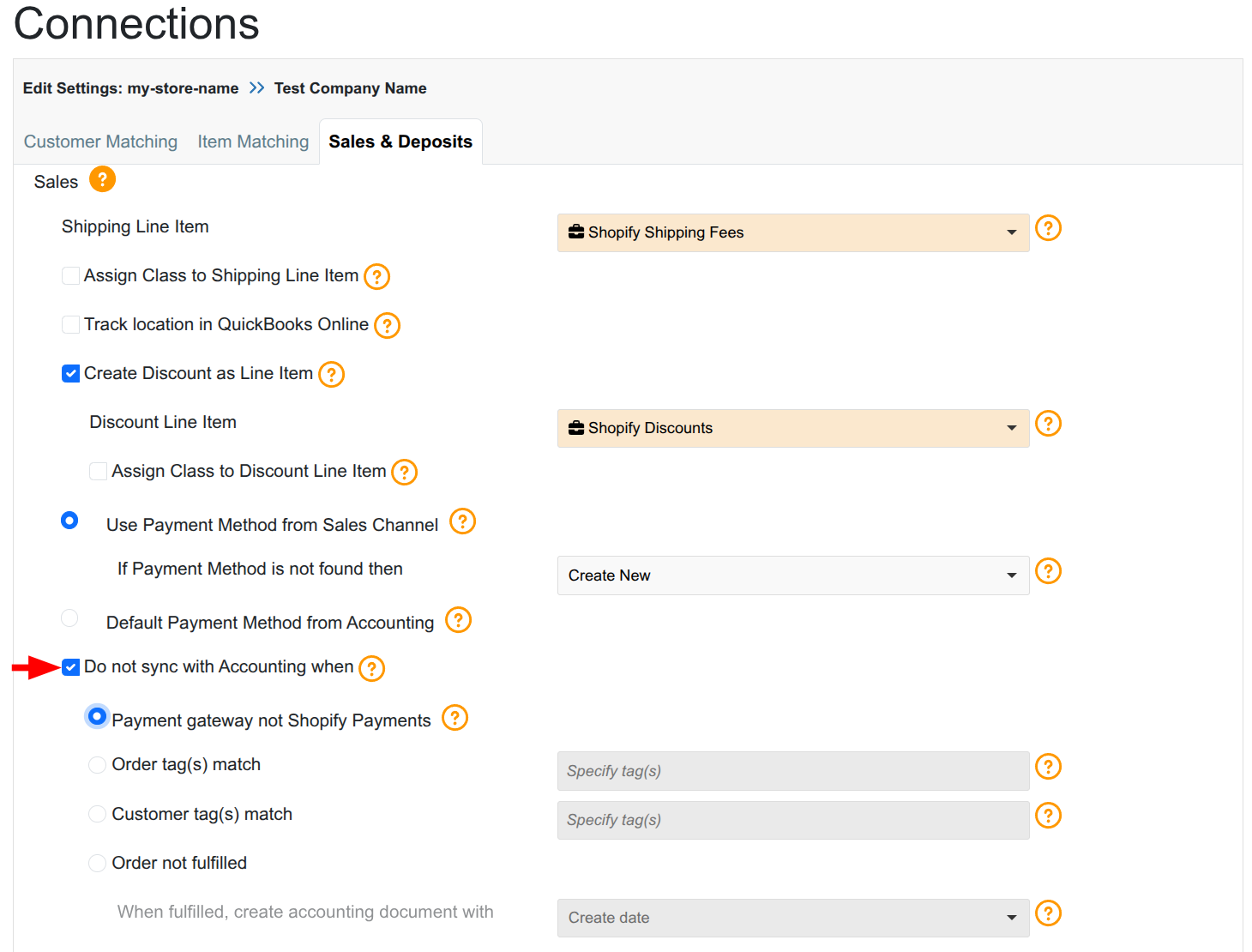
With the Do not sync with Accounting when conditional rule feature in weintegrate you have control over which Shopify orders are synchronized to QuickBooks Online conditionally that prevent specific orders from creating accounting documents based on payment gateway, order tags, customer tags, or fulfillment status.
Why Use Conditional Sync Filtering?
Streamlined order management
Prevent test orders, draft orders, or specific order types from cluttering your QuickBooks Online records, keeping your accounting data clean and meaningful.
Flexible workflow control
Hold orders from syncing until they reach a specific status (like fulfillment), ensuring your accounting reflects only completed transactions.
Payment gateway filtering
Exclude orders processed through external payment gateways (non-Shopify Payments) that may require different accounting treatment or reconciliation processes.
Prerequisites
Before configuring conditional sync:
- Understanding of your order workflow: Identify which orders should be excluded from automatic syncing based on your business processes.
- Tag strategy (optional): If using tag-based filtering, establish a consistent tagging convention in Shopify for orders or customers you want to exclude.
- Fulfillment workflow (optional): If filtering by fulfillment status, understand your order fulfillment process and timing requirements.
How to Configure Do not sync with Accounting when
Step 1: Access Sales & Deposits Settings
- Navigate to your Shopify connection settings in weintegrate
- Locate the Sales & Deposits tab
- Scroll to the Sales section
Step 2: Enable Conditional Sync
- Locate the checkbox labeled Do not sync with Accounting when
- Check this box to enable conditional filtering
Step 3: Select Your Filtering Condition
Once enabled, you’ll see four filtering options presented as radio buttons. Choose the condition that matches your business requirements:
Option 1: Payment Gateway is not Shopify Payments
Select this option to exclude all orders processed through payment gateways other than Shopify Payments (such as PayPal, external payment processors, or manual payment methods).
Use case: When you reconcile non-Shopify Payments orders separately or handle them through a different accounting workflow.
Option 2: Order has tag(s)
Select this option to exclude orders that contain specific tag(s) you define.
- Select the Order has tag(s) radio button
- In the text field that appears, enter one or more tags (you can add multiple tags)
- Type a tag name and press Enter to add it
- Repeat for additional tags
Use case: Exclude wholesale orders (tagged “wholesale”), test orders (tagged “test”), or special promotion orders (tagged “black-friday-hold”) from automatic syncing.
Option 3: Customer has tag(s)
Select this option to exclude orders from customers who have specific tag(s) assigned to their customer profile.
- Select the Customer has tag(s) radio button
- In the text field that appears, enter one or more customer tags
- Type a tag name and press Enter to add it
- Repeat for additional tags
Use case: Exclude orders from VIP customers requiring special handling, wholesale customer accounts, or customer segments with alternative accounting treatments.
Option 4: Order is Unfulfilled
Select this option to prevent orders from syncing to QuickBooks Online until they have been fulfilled in Shopify.
- Select the Order is Unfulfilled radio button
- From the dropdown that appears, choose when to create the accounting document after fulfillment:
- Order date: Create the Sales Receipt / Invoice in QuickBooks Online with the original Shopify order date
- Fulfillment date: Create the Sales Receipt / Invoice in QuickBooks Online with the date the order was fulfilled
Use case: Delay revenue recognition until goods have shipped, or maintain better alignment between fulfillment and accounting records.
Step 4: Save Your Configuration
- Review your selected condition and settings
- Click the Save button at the bottom of the page
Step 5: Verify the Configuration
After saving, new orders matching your selected condition will be automatically excluded from syncing. You can verify this by:
- Creating a test order in Shopify that matches your condition
- Checking in the weintegrate Documents > Open Sales page for Last Sync column showing orders with Accounting Not Sync
- Checking that the order does not appear in QuickBooks Online
What Happens After Configuration
Once enabled (this setting is not retroactive), weintegrate on new orders created after saving this setting will:
- Process orders matching the configured condition rule and
- will still automatically sync to weintegrate where they will be visible on the Documents > Open Sales page indicated by the Last Sync column showing Accounting Not Sync
- will not automatically sync to QuickBooks Online unless Order is Unfulfilled option was selected in which case will sync to QuickBooks Online when fulfilled
Troubleshooting
Orders are still syncing despite the filter being enabled
Possible causes:
- The condition may not match the orders you expect to exclude
- Tag spelling may not match exactly
- The setting was enabled after orders were already created
Solution:
- Verify the orders in question actually meet your selected condition
- Check tag spelling in both Shopify and weintegrate
- Remember that only new orders (created after enabling the setting) are affected
Orders aren’t syncing when I want them to
Possible causes:
- Orders may be inadvertently matching your exclusion condition
- Tags may have been added to orders or customers unintentionally
- The wrong filtering option may be selected
Solution:
- Review the specific orders not syncing and check if they match your exclusion criteria
- Verify order tags and customer tags in Shopify
- Double-check which radio button option is currently selected
- If needed, temporarily disable the conditional sync feature to test
Related Topics
- Create a Product in QBO for Mapping Discounts from Shopify
- Set a QuickBooks Online Class to Discount Line Items by Store Connection
- Map Shopify Shipping Fees to Shipping Line Items in QuickBooks Online
- Sales Default: Integrate Shopify with QuickBooks Online Record Sales Type
- Understanding Sales & Deposits Settings
- Shopify to QuickBooks Online Integration Setup